FCast Receiver
The FCast Receiver is a receiver implementation that supports using the FCast protocol for displaying multimedia content from FCast sender applications.
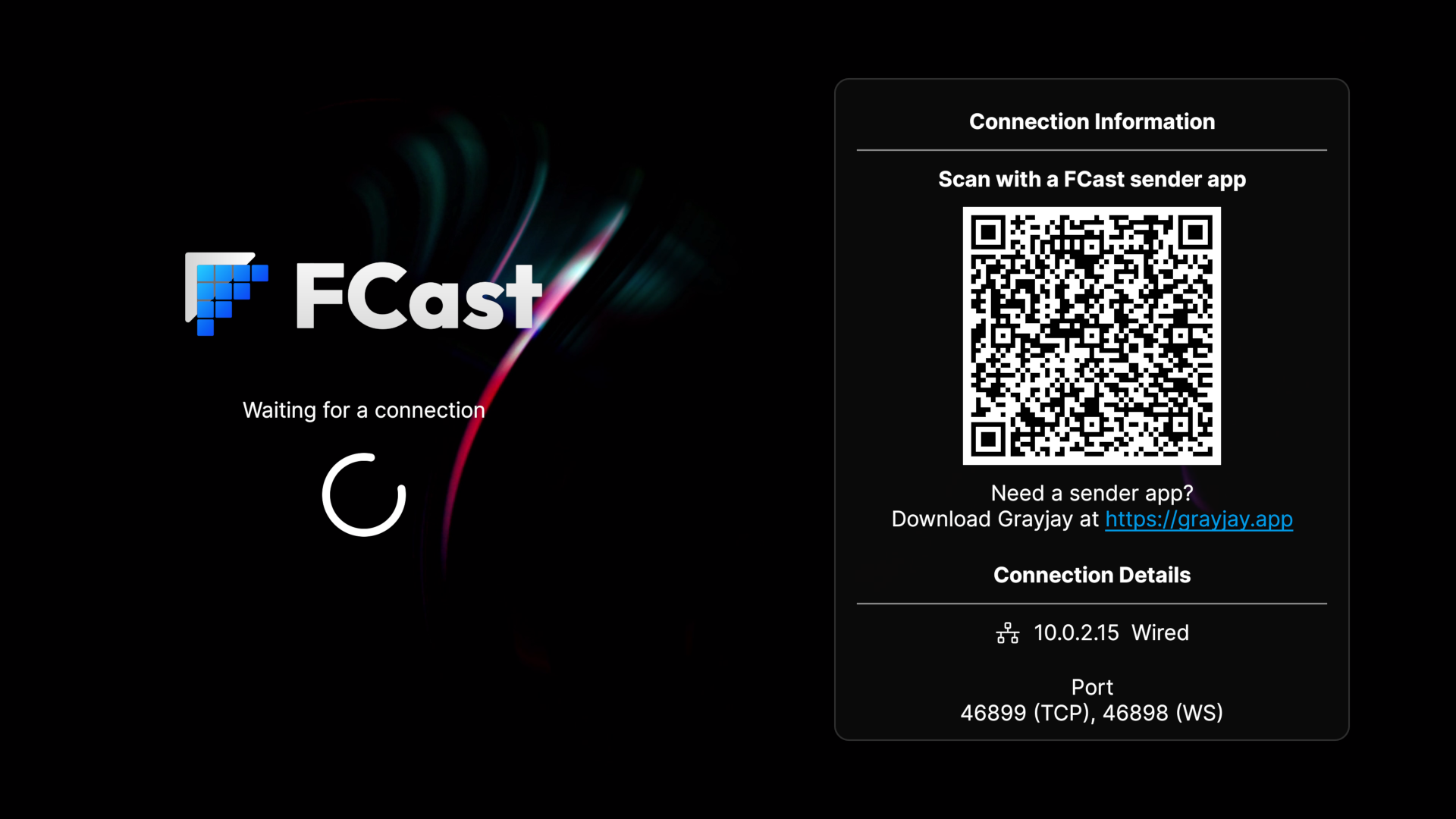
Currently supported receiver platforms include:
- Android (Native)
- Electron (Linux, Windows, MacOS)
Receivers can be downloaded from https://fcast.org/#downloads
Connecting to the Receiver
After starting an FCast sender and a receiver application, you have the following options to connect your devices:
Automatic Discovery (mDNS)
Note
Automatic discovery may not work in all network configurations.
The receiver should be visible in the casting dialog under Discovered Devices in the sender application. If you cannot find your receiver device, try connecting via QR code or manually connecting to it.
QR Code Connection
If you are using a sender application on a mobile device, you will have the ability to connect to the receiver by scanning the receiver QR Code from the sender application.
Manual Connection
- Find the IP of the device running the receiver. The receiver will display all IP address you may be able to connect to under the
Connection Detailssection. - In the sender application, navigate to the menu where you can manually connect to the receiver.
- Enter the IP and port (if required, default is
46899) information and connect.
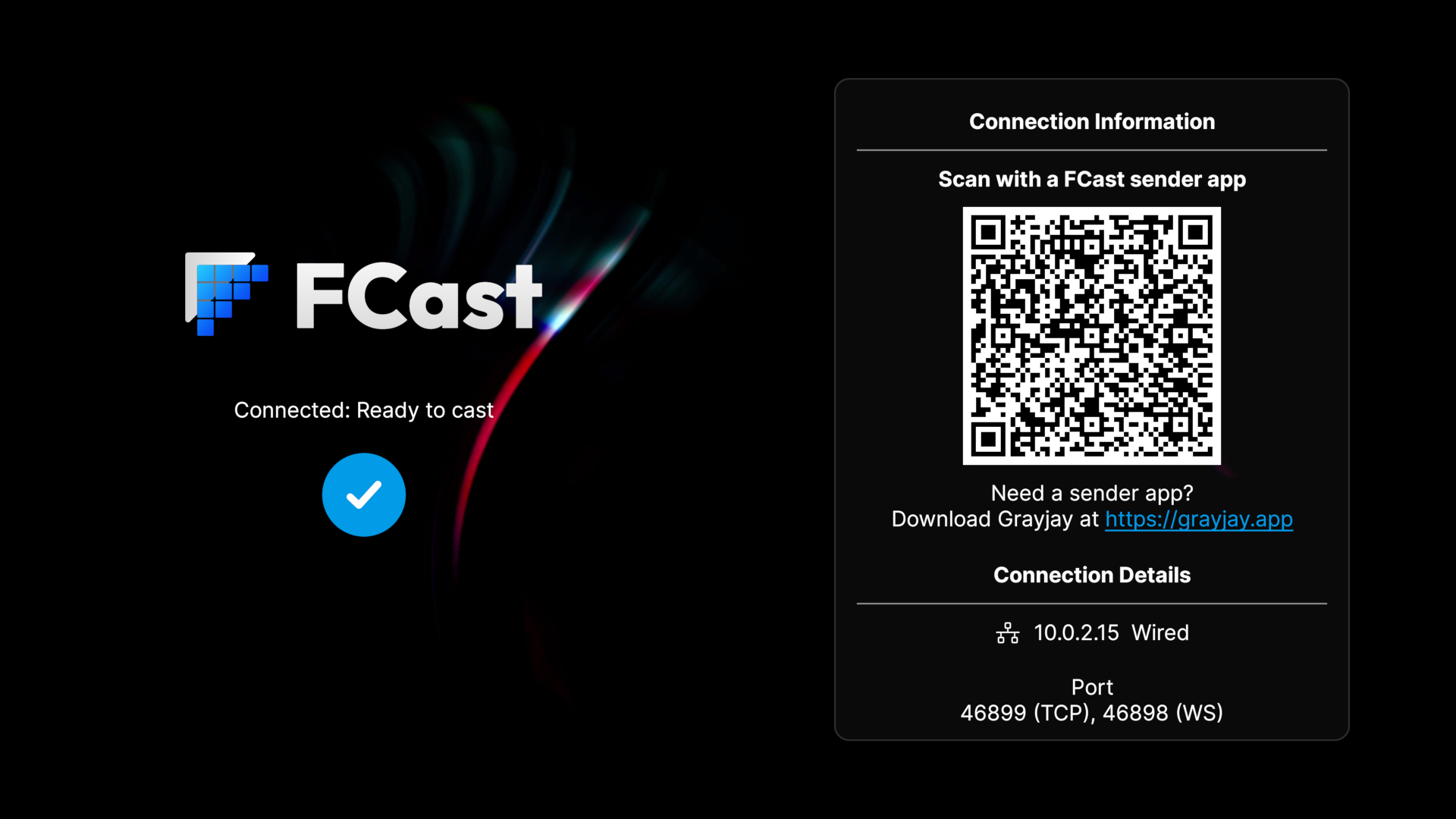
The receiver will indicate once you have successfully connected to the sender application.
Electron Receiver
The Electron receiver is the desktop receiver application which runs from the OS system tray. The application will continue to run in the system tray when you close the player or main window. You can exit the application or access other menu options from the tray icon.
Command-line Interface Flags
The application supports the following CLI flags:
Options:
  --help                  Show help                                    [boolean]
  --version               Show version number                          [boolean]
  --no-main-window        Start minimized to tray                      [boolean]
  --fullscreen            Start application in fullscreen              [boolean]
  --log, --loglevel       Defines the verbosity level of the logger
  --no-fullscreen-player  Start player in windowed mode                [boolean]
  --no-player-window      Play videos in the main application window   [boolean]
Configuration Settings
You may modify internal configuration settings if you wish to change the receiver's default behavior. The configuration file can be found in the following directories:
- Windows:
%APPDATA%\fcast-receiver\UserSettings.json - MacOS:
~/Library/Application Support/fcast-receiver/UserSettings.json - Linux:
~/.config/fcast-receiver/UserSettings.json
Application Logs
Log files for troubleshooting can be found in the following directories:
- Windows:
%APPDATA%\fcast-receiver\logs\fcast-receiver.log - MacOS:
~/Library/Logs/fcast-receiver/fcast-receiver.log - Linux:
~/.config/fcast-receiver/logs/fcast-receiver.log